


Dated 2nd June 2023. Credits to Mr. James who showed me how to use this technology.
Dear students,
The latest Adobe Photoshop (Beta) contains a new artificial intelligence (AI) Tool based on generative AI technology, producing the “Generative Fill” feature.
This new features allows the designer to buddy up with an in-built AI technology, to “fill-up” designated image spaces for you, with proposed imagery it has been trained on.
As you get ready to finish your last exam and welcome the June holidays, you can view the walkthough and figure out how to experiment and utilise this technology in future.
Ref: https://youtu.be/bKYS9btyeOw
Original Images from Pixabay:
- https://pixabay.com/photos/woman-beach-jump-happy-woman-332278/
- https://pixabay.com/photos/girl-child-kid-pray-praying-1894125/
- https://pixabay.com/photos/portrait-man-male-person-adult-2194457/
[Transcript – Read by Adobe Audition’s Text-To-Speech AI]
Open up Adobe Creative Cloud.
Go to the “App” tab on the top -> Look for “Categories” at the “Left” Panel -> Select Beta Apps -> Under Desktop Apps -> Look for Photoshop (Beta) and Click “Install”
Once Installation of this experimental Photoshop App is completed, Open the Photoshop (Beta) App. This is different from the normal Photoshop App which is the latest stable version.
With Photoshop (Beta) App opened, go to your web browser and download 3 images from Pixabay website to try to edit on your own.
For me, I choose images of 2 adults (male and female) plus a child to see the different AI generative varations.
Open the downloaded images and begin to work with the new AI tool via Prompt Engineering, to instruct the “Generative Fill” feature to generate new image variations.
Step 1: Open and go to the image.
Step 2: Use Lasso to select the portion of the image to instruct the “Generative Fill” feature to alter.
Step 3: The “Generative Fill” panel will appear below the selected image area. Go to the text box and type in the prompt words you will use to instruct this beta stage AI tool.
Step 4: With your commands crafted, click on “Generate”, the loading bar will appear as this beta AI begins working for you.
Remarks: As this is a beta tools, it may bug out on you sometimes. Press cancel if the loading bar jams up.
At times, you may even need to open Task Manager to kill this beta app. Since you went through Operating System Essentials, I assume you know how to be an assassin of apps.
Step 5: Once the “Generative Fill” completed its work, it will offer up 3 variations of its proposed image fills for you to select.
You can then save the altered image work.
Original Images vs. Final Image Outputs
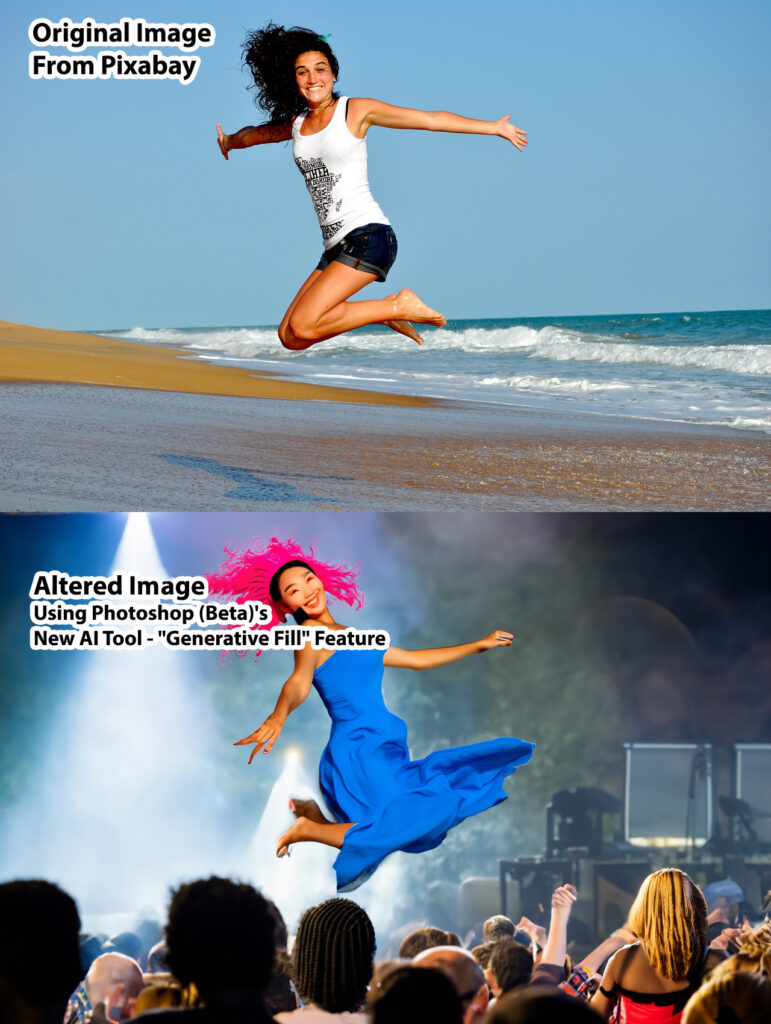
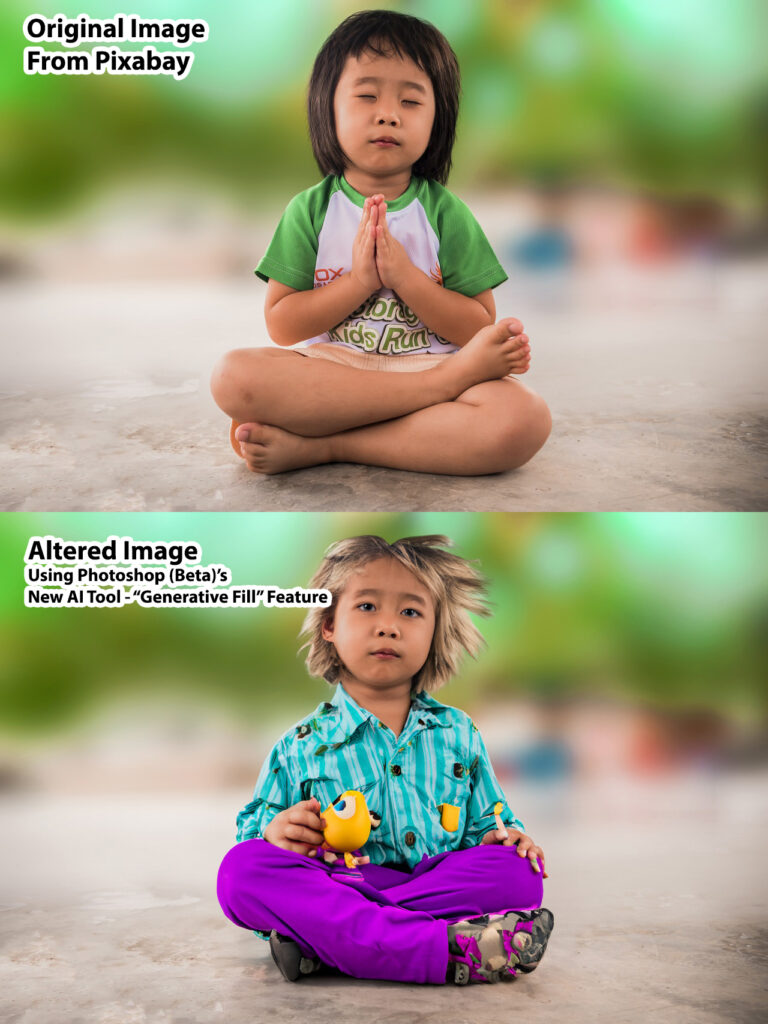
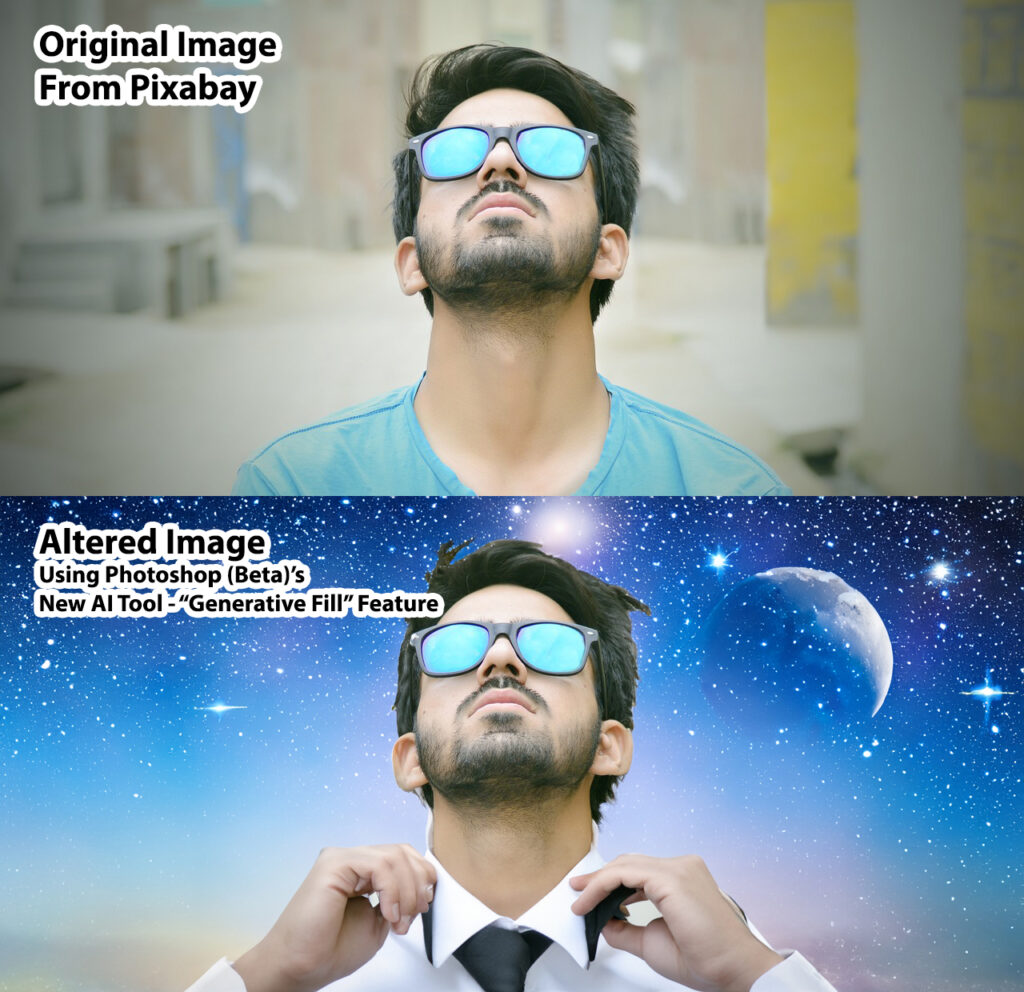
Have fun experimenting!