

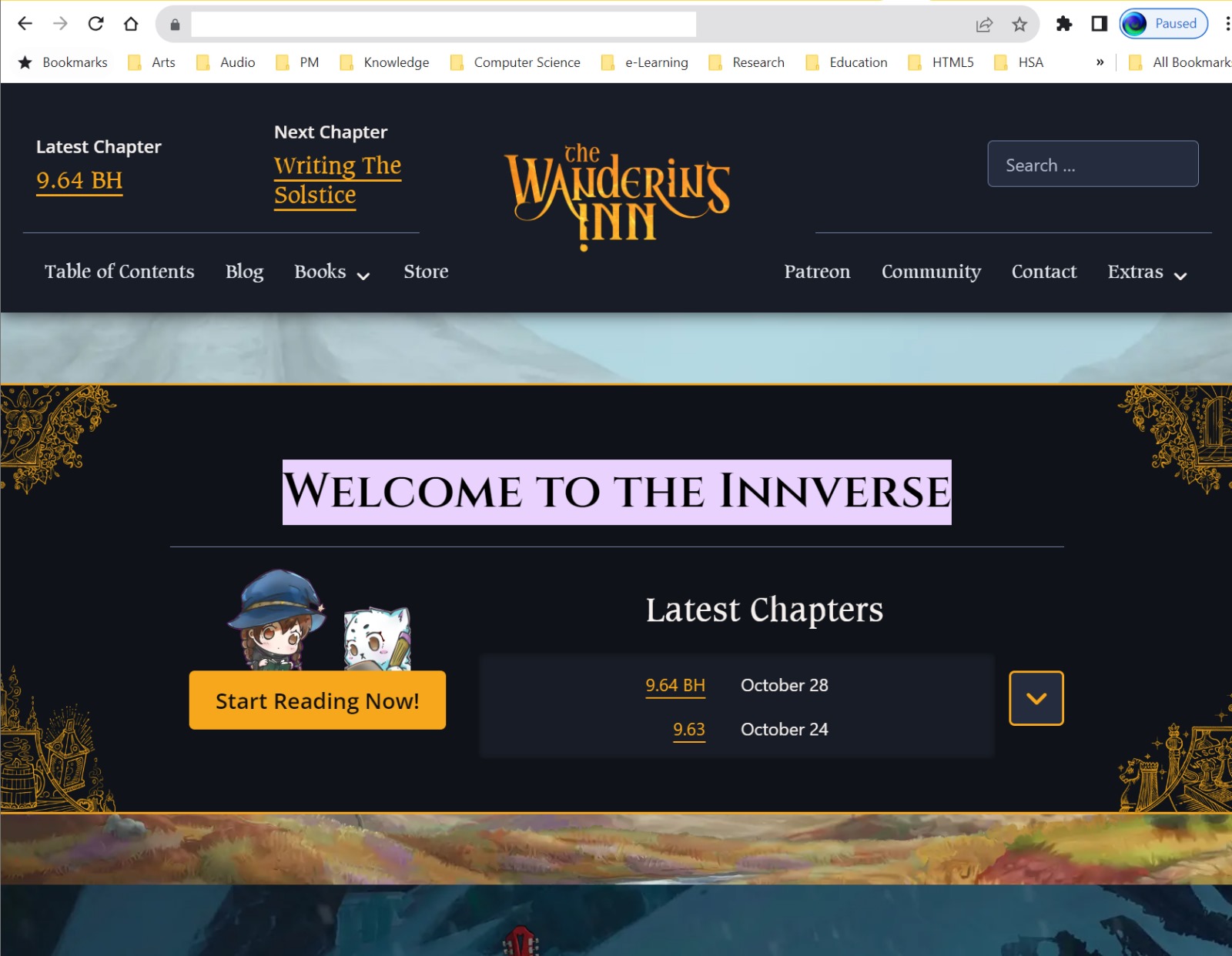

Scenario: You saw this website (https://wanderinginn.com/) and wanted to send to a friend with the words Welcome to the Innverse highlighted.
How do you configure the weblink to highlight the text?
The answer lies in combining the URL with #:~:text=
Step 1: Open the webpage (https://wanderinginn.com/).
We will begin with inspection of the elements making up the webpage. Right-click the text element and open Inspect.

Step 2: Inside Inspect: Elements Panel, target the text element you want to highlight.
Right-Click on it, Select Copy > Copy Element.
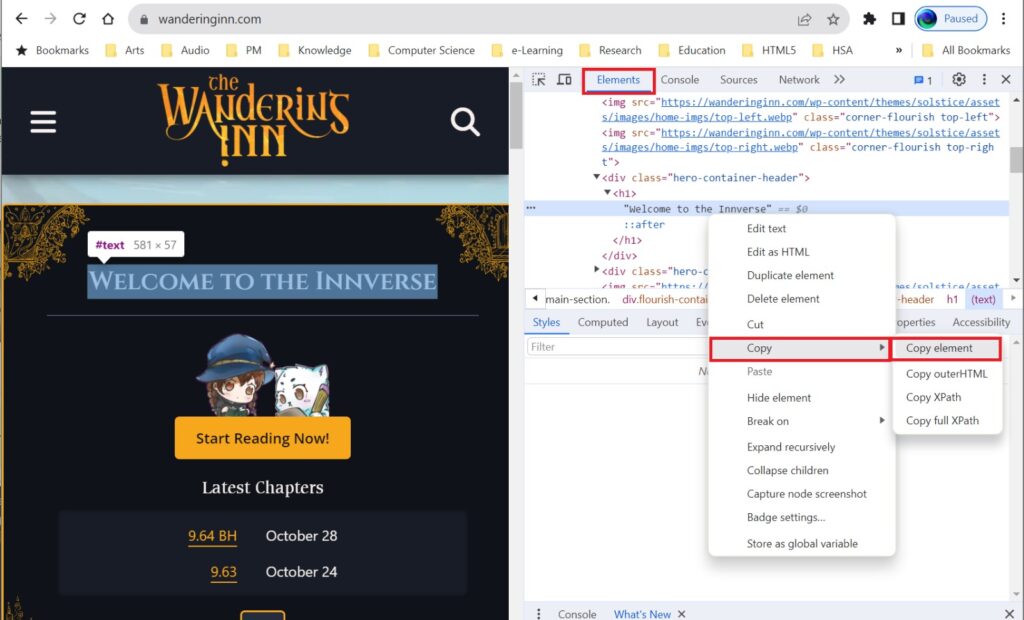
Remarks: Step 2 is showing the Inspect panel for Google Chrome. Other Web Browsers’ Inspect Panels may have varying appearances.
Step 3: Open Notepad, prepare the ingredients you need to combine for your special URL link with text highlight.
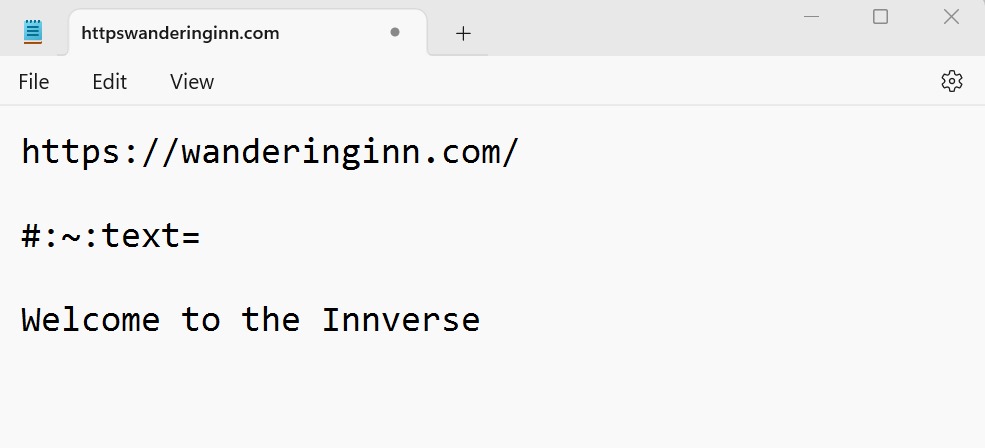
1st: the original URL
2nd: the binding agent
3rd: the text element to be highlighted
Step 4: Delete the line breaks, combine the 3 parts into 1 whole URL link.
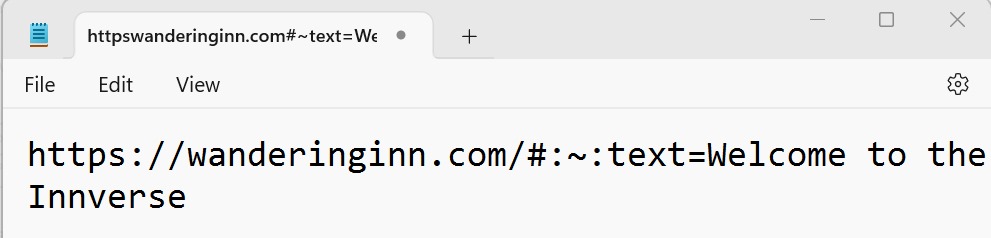
Step 5: Replace any white space in the text element with %20
Remarks: Remember that HTML Web Page is based on ASCII Encoding (The default character-set in HTML5 is UTF-8.). What we are doing above is to set a weblink that will “search” and “highlight” the identified page on webpage loading. Thus, the text element in the weblink needs to be displayed in the relevant encoding.
If there are other symbols in text, they will need to be converted accordingly.
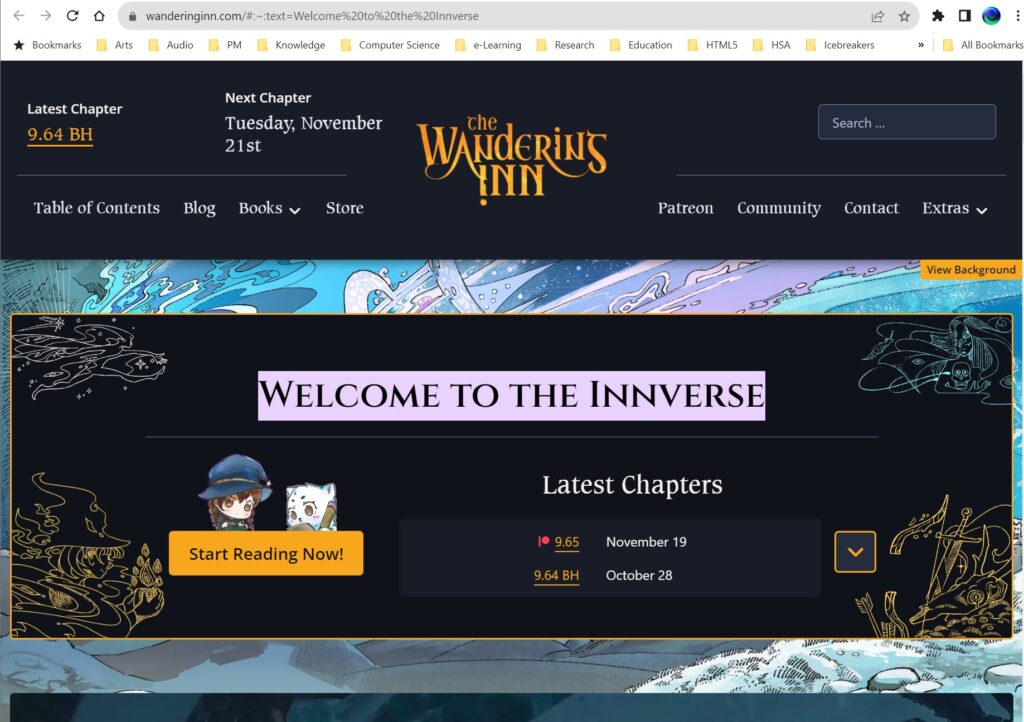
You will then have your final URL which will display target text element in highlight. https://wanderinginn.com/#:~:text=Welcome%20to%20the%20Innverse